
WORDPRESS ARTICLE • MACOS • 2026 EDITION
How to check compatibility, fix failed launches, and understand the new Intel/Rosetta warning.
Original editorial illustration • For explanation only, not a screenshot of Respondus
If LockDown Browser fails to open on an Intel MacBook or iMac, it is tempting to blame the Intel processor. Yet Respondus still describes its current Mac version as Intel-based and says it runs reliably on both Intel Macs and Apple silicon Macs through Rosetta.
In November 2026, Respondus published guidance about a Mac Intel warning. That alert concerns future platform support and Rosetta—it does not automatically signal an exam failure. Actual launch problems on older Intel machines are more likely to require checking the installed macOS release, application version, SIP state, installation health, and other app interactions.
| THE SHORT ANSWER Check About This Mac to identify your processor and macOS version. Respondus currently requires macOS 12+. Update LockDown Browser, verify SIP, exit Chrome full-screen before launching a quiz, and test again. |
Is LockDown Browser compatible with Intel Macs?
Yes, when the computer meets the supported operating-system and hardware requirements. Respondus’s November 5, 2026 notice says the current Intel-based Mac application works on Intel hardware and on Apple silicon using Rosetta. The notice states that Respondus is developing a native Apple silicon version before Rosetta support is discontinued.
The processor alone is therefore not a confirmed explanation for a crash. Mac age matters indirectly because older Intel hardware may not support macOS 12 or later. Respondus currently lists macOS 12+ as its supported baseline, with at least 2 GB RAM for basic use and a minimum of 4 GB available RAM for exams requiring a webcam.
There is also a specific Mac launch issue identified by Respondus: starting a LockDown Browser quiz from Google Chrome while Chrome remains in full-screen mode can cause the browser to fail to appear; resizing afterward may leave windows flashing until a restart.
How to recognize the problem
- An older Intel Mac cannot upgrade to macOS 12 or newer.
- LockDown Browser fails to show after launching a quiz from full-screen Chrome.
- The app closes with a SIP security message or a corrupted-resource warning.
- An Intel/Rosetta compatibility notice appears but the app can still open.
How to fix it: step by step
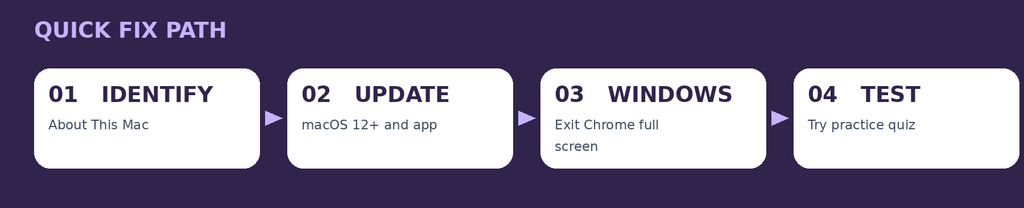
Quick troubleshooting path • Detailed instructions follow
Step 1. Confirm the Mac model and processor
Choose Apple menu → About This Mac. Record the Mac model, year, processor (Intel or Apple silicon), installed macOS version, and available storage. Do not assume all older Macs support the same upgrade.
Step 2. Compare macOS with Respondus requirements
Check that the Mac runs macOS 12 or newer. If the computer cannot install a supported macOS release, ask your school about a managed computer, loaner, or permitted alternative platform.
Step 3. Update LockDown Browser
Open the app and use its toolbar information control → Check for Update. If it will not open, download the current institutional installer and reinstall. Test with a practice quiz, not a graded exam.
Step 4. Check SIP before launching a secure test
In ordinary Terminal, run csrutil status. If it shows disabled or a nonstandard state, follow the SIP restoration instructions from the companion article. Respondus now requires SIP fully enabled on Mac.
Step 5. Exit Google Chrome full-screen mode
If launching the assessment from Chrome, press Control + Command + F or use the green window control to exit full-screen before selecting Launch LockDown Browser. If the Mac entered the window-flashing state described by Respondus, restart it.
Step 6. Close conflicting applications and restart
Quit unnecessary background apps such as remote-desktop tools, screen-sharing utilities, and other browser windows. Restart the Mac. Follow institutional instructions for permitted accessibility or assistive technology.
Step 7. Repair a broken installation
If Respondus reports missing application resources or installation failure, use its documented clean reinstall steps with the school-specific installer and administrator account as needed.
Step 8. Escalate with useful facts
Share the Mac model/year, macOS version, LockDown Browser version, exact message, and whether Chrome was full-screen. Ask campus IT to run a practice attempt or provide an authorized alternative before the exam deadline.
Bypass All Proctored Exams EXAMPIE BYPASS:
If the problem continues
- A Rosetta or Intel warning is not proof of a crash. Read the exact message before troubleshooting.
- Do not install unsupported macOS versions using unofficial patching tools just to run an exam without school approval.
- Avoid disabling SIP or other Mac protections to troubleshoot—Respondus requires SIP enabled.
- An Intel Mac on a supported macOS release can still encounter unrelated camera, network, or learning-platform issues.
Frequently asked questions
Is Respondus abandoning Intel Macs right now?
Its November 2026 notice says the current Intel-based application continues to run reliably; it does not announce an immediate Intel-Mac shutdown.
Why does the app show an Intel warning on my M-series Mac?
The existing Mac application uses Intel code and Rosetta on Apple silicon. Respondus says it is developing a native Apple silicon version.
Can I use LockDown Browser on macOS Catalina or Big Sur?
Those operating systems are older than the current Respondus macOS 12+ minimum; they are not officially supported under the published requirements.
Why does Chrome flashing occur after I launch an exam?
Respondus documents a full-screen Chrome issue on Mac; exiting full screen before launching and restarting if windows become inaccessible are its suggested remedies.
Official documentation and further reading
- Respondus: Mac Intel Warning
- Respondus: LockDown Browser requirements
- Respondus: Full Screen for LockDown Browser for Mac
- Respondus: LockDown Browser for Mac System Integrity Protection
- Respondus: How to update LockDown Browser
- Respondus: Missing or corrupt application resources
- Apple: If an app closes unexpectedly
WordPress publishing notes
Suggested URL slug: intel-lockdown-browser-mac-troubleshooting
Meta description: Respondus LockDown Browser problems on an Intel Mac? Check macOS requirements, browser updates, SIP, Chrome full-screen conflicts, and repair steps.
Suggested focus phrases: respondus lockdown browser intel mac not working, mac intel warning lockdown browser, lockdown browser mac full screen chrome fix
Editorial note: Screens and menu labels can change with macOS and Respondus updates. This is independent educational guidance, not an official Respondus publication.