
WORDPRESS ARTICLE • MACOS • 2026 EDITION
How to check your version, get the latest compatible release, and distinguish an outdated installation from other crash causes.
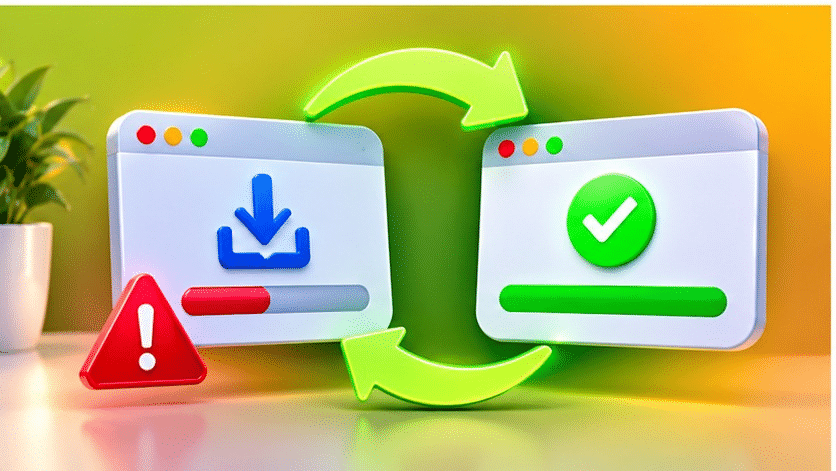
Original editorial illustration • For explanation only, not a screenshot of Respondus
An old or incomplete LockDown Browser installation can interfere with starting a proctored exam. Updates can contain security changes, browser-engine changes, compatibility improvements and bug fixes. That makes version checking an important early troubleshooting step.
As of November 19, 2026, Respondus lists LockDown Browser for Mac version 2.1.6.02, released November 17, 2026, with bug fixes and security enhancements. This figure is a dated reference, not a permanent promise about what the latest version will be when a student reads this article.
| THE SHORT ANSWER Open LockDown Browser → select the information (“i”) control → Check for Update. If it will not launch, get a fresh installer from your school’s own LockDown Browser download link. Restart and try a practice exam. |
Why can an older version cause startup or exam problems?
Respondus updates LockDown Browser to keep it aligned with evolving macOS releases, learning platforms, and exam security requirements. An old installation may lack later fixes; a partial update can also leave files or configuration data missing.
But an outdated version is not the explanation for every unexpected quit. An explicit SIP warning means the Mac security setting must be addressed. Respondus has a separate support article for missing application resources, where reinstalling is the recommended solution.
A loop that repeatedly requests an update can indicate an installation or account-permissions problem. Respondus recommends using a Mac administrator account and installing a fresh copy from the institution-specific download page for that scenario.
How to recognize the problem
- The app offers an update every time it opens or fails during an update.
- The school says a more recent version is required.
- You see an application-resources or corrupted-installation error.
- The app worked before a macOS upgrade and has not been updated since.
How to fix it: step by step
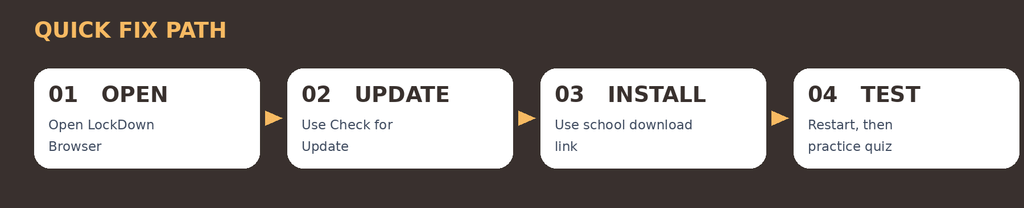
Quick troubleshooting path • Detailed instructions follow
Bypass All Proctored Exams EXAMPIE BYPASS:
Step 1. Check your macOS version
Choose Apple menu → About This Mac and record your macOS version. Respondus currently lists macOS 12 or newer for supported LockDown Browser installation. If your Mac cannot run macOS 12+, speak to your institution about alternatives.
Step 2. Open LockDown Browser and check its version
Start the browser outside a live timed exam. Choose its toolbar information control (often an “i”) and select Check for Update. Read the installed version and whether a newer one is available.
Step 3. Install the offered update
Accept an available update, let it finish, then fully quit and reopen the application. Do not interrupt installation or run an exam during an update.
Step 4. If the app crashes before opening, download a fresh installer
Visit the LockDown Browser installation page supplied by your school. Institutions have unique download links, so copying an installer from someone else’s university can cause incorrect configuration.
Step 5. Reinstall with normal macOS permissions
Sign in to a Mac administrator account if required. Follow the supplied installer instructions. If installation fails, Respondus recommends removing the current app and old installer files, restarting, then downloading and installing again.
Step 6. Check for specific errors after reinstalling
An “application resources” error points toward missing configuration files; a documented SIP warning points to system security, not merely age. If the update check itself fails, check your school network or firewall policies with IT.
Step 7. Restart and take a practice exam
Restart the Mac and launch a course-provided practice quiz. Confirm the test opens, the webcam setup works if required, and the app closes normally after the practice attempt.
If the problem continues
- Avoid publishing a permanently “latest” version number. Add a publication date and link to Respondus release notes.
- Do not get LockDown Browser from app-sharing sites, torrents, or a random university’s installer page.
- If you are stuck in an update loop, use an administrator account and the Respondus fresh-install procedure.
- During a real exam, report crashes immediately and ask the instructor how to resume or arrange another attempt.
Frequently asked questions
Does Respondus update automatically?
Respondus says existing Mac installations are normally updated automatically, but students can also check manually or use the full installer.
What is the latest Mac version as of November 19, 2026?
Respondus announced version 2.1.6.02 on November 17, 2026. Check the official release page for newer versions after that date.
Can an outdated macOS version cause problems?
Yes. Respondus currently supports macOS 12 and newer. Older operating systems may be unsupported even if an older browser build starts.
Why does reinstalling sometimes work when updating does not?
A reinstall can replace missing or damaged application files and institution configuration that a failed update may not have repaired.
Official documentation and further reading
- Respondus: How to update LockDown Browser
- Respondus: LockDown Browser for Mac, version 2.1.6.02
- Respondus: LockDown Browser requirements
- Respondus: Mac installation failed
- Respondus: Missing or corrupt application resources
- Respondus: LockDown Browser for Mac keeps updating
WordPress publishing notes
Suggested URL slug: outdated-lockdown-browser-mac-troubleshooting
Meta description: Is an outdated LockDown Browser causing Mac crashes? Follow verified steps to check for updates, reinstall safely, and resolve damaged installation files.
Suggested focus phrases: update lockdown browser mac 2026, lockdown browser quit unexpectedly outdated mac, respondus lockdown browser mac reinstall
Editorial note: Screens and menu labels can change with macOS and Respondus updates. This is independent educational guidance, not an official Respondus publication.

Why Does Respondus LockDown Browser Ban Students? Causes, Warnings, and How to Get Unbanned - Exam Pie Bypass
November 20, 2026[…] How To Bypass Lockdown Browser without being detected […]