
WORDPRESS ARTICLE • MACOS • 2026 EDITION
What System Integrity Protection does, why Respondus closes, and how to restore the supported configuration.
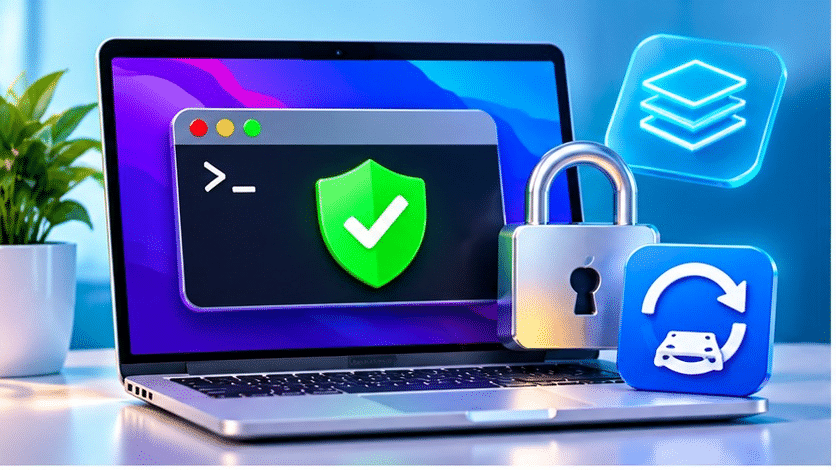
Original editorial illustration • For explanation only, not a screenshot of Respondus
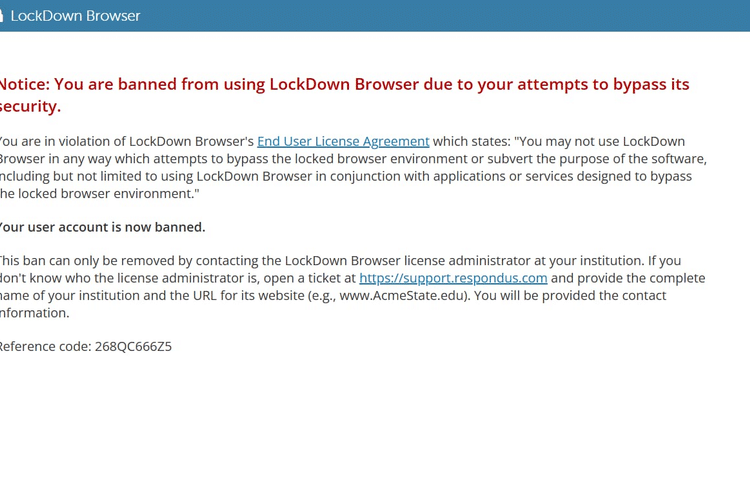
You launch an online test and LockDown Browser immediately closes, or you see a security warning before the exam begins. If the message mentions System Integrity Protection, the problem may be the Mac’s security configuration rather than the test itself.
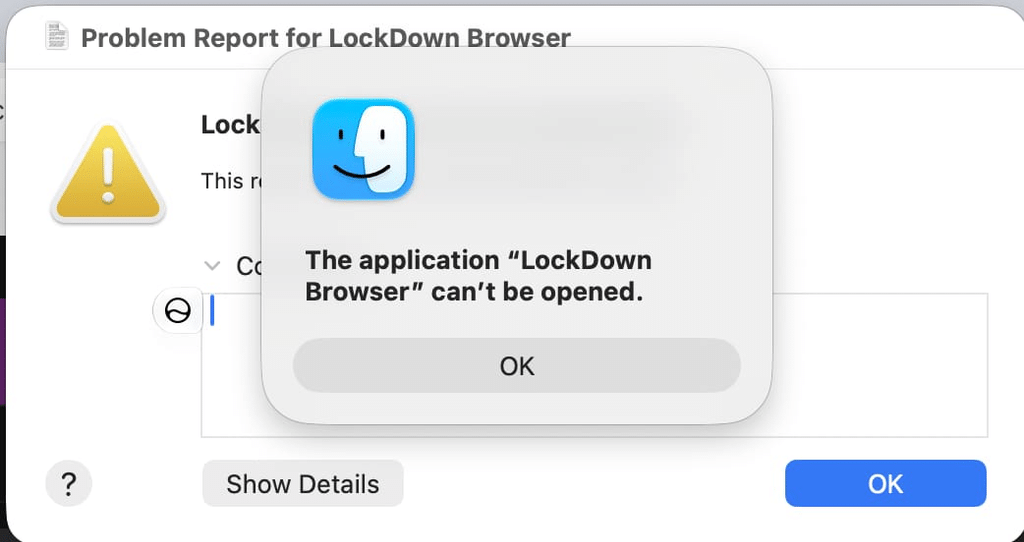
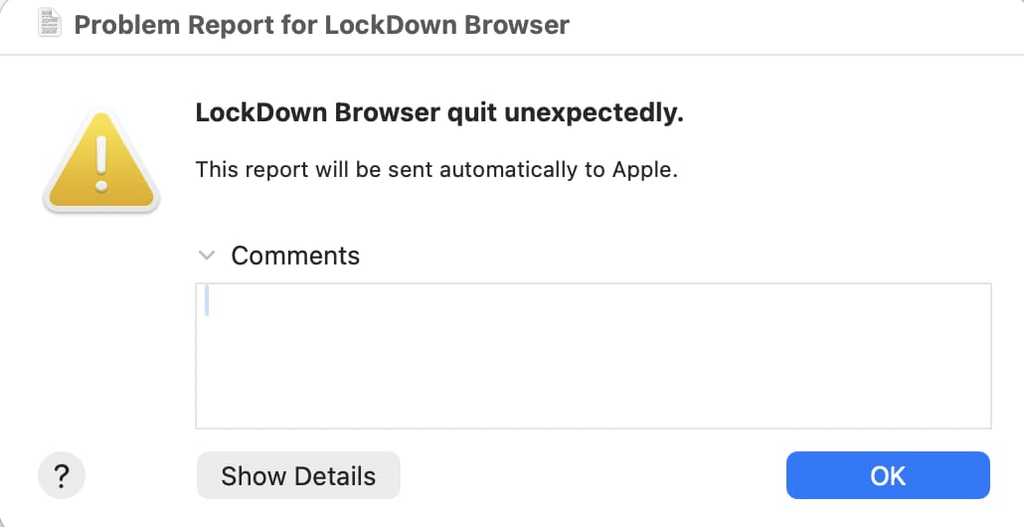
Respondus confirmed in October 2026 that its Mac browser requires System Integrity Protection (SIP) to be fully enabled. This is a specific, documented cause of the program deliberately terminating or refusing to start. A generic ‘quit unexpectedly’ dialog, however, is not enough by itself to identify SIP as the cause.
| THE SHORT ANSWER Check SIP in Terminal with csrutil status. If it is disabled or not fully enabled, use macOS Recovery and Apple’s csrutil enable command, then restart and verify the status before opening your practice test. |
How to Bypass Respondus Lockdown Browser in 2027
What is SIP, and why does LockDown Browser close?
System Integrity Protection (SIP) is a macOS security feature that restricts changes to protected system files and processes—even when an application has administrator privileges. It helps prevent unauthorized tampering with critical parts of macOS.
Respondus treats SIP as a required part of its trusted exam environment. When the browser sees that SIP is off, it can end the launch or exam session instead of continuing. That is a product security check, not necessarily a software crash. Respondus also describes an ‘insecure test environment’ warning that can appear in this situation.
SIP may have been disabled previously for development work, specialized utilities, or repairs. The fact that an app runs in normal Safari or Chrome does not mean it meets LockDown Browser’s stricter startup requirements.
How to recognize the problem
- An explicit warning states that System Integrity Protection (SIP) is disabled.
- LockDown Browser reports that the test environment is insecure and exits.
- The issue happens before the exam begins despite the computer otherwise working normally.
- If you only see a generic crash notice, do not assume SIP is the cause—confirm it with the status check.
How to fix it: step by step
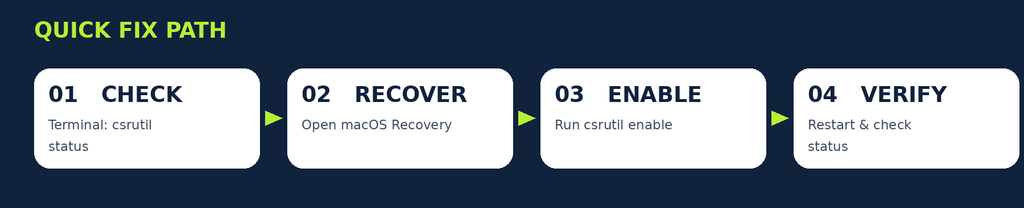
Quick troubleshooting path • Detailed instructions follow
Step 1. Capture the exact wording
Take a photo of the error or write it down. If a timed assessment has already started, contact your instructor promptly and preserve the incident time.
Step 2. Open Terminal in regular macOS
Go to Finder → Applications → Utilities → Terminal. You can also open Spotlight and search for Terminal. No administrator password is needed for this read-only check.
Step 3. Check the current SIP status
Terminal command (check only):
csrutil status
Type csrutil status and press Return. A normal fully enabled state should show “System Integrity Protection status: enabled.” If it says disabled, unknown, or reports a nonstandard/custom configuration, seek to restore the fully enabled state.
Step 4. Enter macOS Recovery
Intel Mac: shut down, power on, immediately hold Command (⌘) + R until Recovery appears. Apple silicon: shut down, press and hold the power button until startup options appear, choose Options → Continue. If asked, select a user and enter the password.
Step 5. Re-enable SIP using Apple’s recovery tool
Recovery Terminal command:
csrutil enable
In Recovery choose Utilities → Terminal. Enter csrutil enable, press Return, and follow any prompts. This command must be run in macOS Recovery; it cannot enable SIP from an ordinary desktop Terminal session.
Bypass All Proctored Exams EXAMPIE BYPASS:
Step 6. Restart and verify
Restart normally, open Terminal, run csrutil status again, and confirm it reports enabled. If it does not, ask your school’s IT department or an Apple-qualified technician to investigate the security configuration.
Step 7. Update, then run a practice test
Launch LockDown Browser, use its information button to choose Check for Update, and take a school-provided practice quiz before the real exam. If it still fails with SIP enabled, troubleshoot installation or system errors separately.
If the problem continues
- Do not disable SIP to run exam-support tools or attempt to hide other software; Respondus now requires SIP enabled.
- A managed college Mac may require an authorized administrator to restore the system policy.
- If Recovery requests a firmware password or will not open, stop and contact the device administrator.
- If the browser says application resources are missing, reinstall from the unique link provided by your institution.
Frequently asked questions
Can I turn on SIP in ordinary Terminal?
You can check its status there, but enabling SIP requires Recovery mode. Apple documents csrutil enable in Recovery.
Will enabling SIP delete my files?
The command changes a protection setting rather than erasing the disk. Back up important work before any system-level intervention, particularly on modified or managed Macs.
What if it says enabled but Respondus still closes?
Confirm it is fully enabled and not a custom state, then update LockDown Browser. Do not assume that every unexpected quit is caused by SIP.
Does this apply to Intel and Apple silicon Macs?
Respondus sets a Mac-wide SIP requirement. The Recovery startup procedure differs between Intel and Apple silicon models.
How To Bypass Lockdown Browser without being detected
Official documentation and further reading
- Respondus: LockDown Browser for Mac System Integrity Protection
- Apple: Disabling and Enabling System Integrity Protection
- Apple: How to start up from macOS Recovery
- Respondus: How to update LockDown Browser
- Respondus: Missing or corrupt application resources
WordPress publishing notes
Suggested URL slug: sip-lockdown-browser-mac-troubleshooting
Meta description: Respondus LockDown Browser quitting on Mac because SIP is disabled? Learn how to check SIP with csrutil and safely re-enable it in macOS Recovery.
Suggested focus phrases: respondus lockdown browser sip disabled, lockdown browser insecure test environment mac, csrutil enable lockdown browser mac
Editorial note: Screens and menu labels can change with macOS and Respondus updates. This is independent educational guidance, not an official Respondus publication.