2026 STUDENT INSTALLATION GUIDE · WINDOWS
How to Download and Install Respondus LockDown Browser on Windows 10 or 11 (2026 Guide)
If your online exam requires Respondus LockDown Browser, this illustrated Windows guide takes you from the correct school download link to your first successful practice quiz.
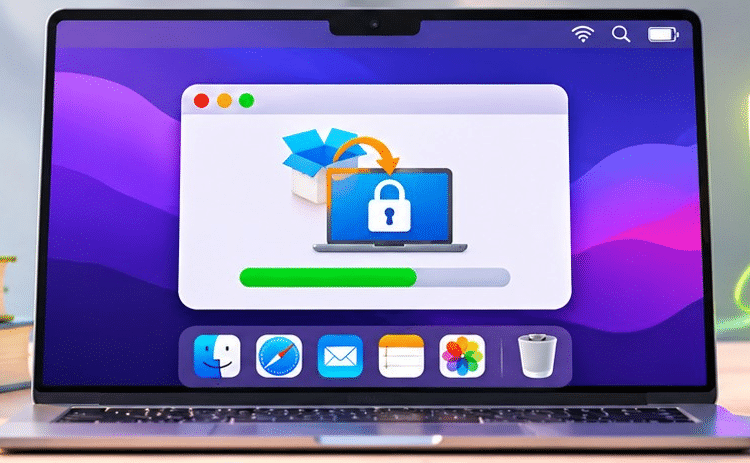
Concept illustration — not a screenshot of the actual Respondus installer.
| IMPORTANT: Download Respondus LockDown Browser through the official link supplied by your own university or college. An installer linked to another institution may not work. |
Before you install: requirements checklist
- A Windows 11 computer, or Windows 10 build 19045 or newer. Windows S mode and Windows SE are not supported.
- An account with administrator permissions, or help from the person who administers the device.
- An internet connection and your university or college’s unique Respondus download link.
- At least 2 GB of RAM for basic use; 4 GB of available RAM if your exam also requires webcam monitoring. Reserve at least 300 MB of disk space.
- Your course login, exam instructions and—ideally—a practice quiz to test the setup.
Bypass All Proctored Exams EXAMPIE BYPASS:
Step-by-step installation instructions
Step 1: Confirm your computer meets the requirements
Go to Start > Settings > System > About and check your Windows edition and system details. If you use Windows 10, verify that it meets the supported build requirement; if you use Windows 11, make sure you are not in S mode. You can check your Windows version by pressing Windows + R, typing winver, and pressing Enter. If your device is managed by your school or employer, ask its administrator before attempting installation.
Step 2: Find the download link provided by your institution
Open Canvas, Blackboard, Brightspace or the learning system your school uses. Look for the exam instructions, an official campus IT page, or a message from your instructor. Some schools display an installation link when you open a LockDown Browser-enabled quiz in Chrome or Edge. If you cannot find it, contact your school’s help desk. Avoid generic download sites, old links from other universities, and “free installer” pages.
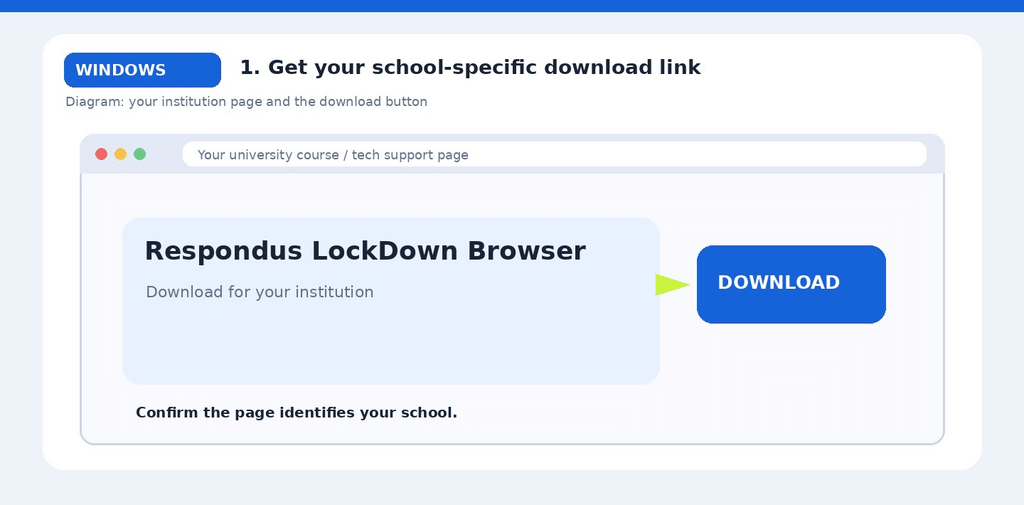
Illustrative guide image — actual installer screens and wording may differ.
Step 3: Open the school download page and select Windows
In a regular browser such as Edge or Chrome, open the official link. Confirm that the page identifies your institution and read the displayed requirements. Select the Windows installer or the Download / Install Now button. The wording and design may differ from our illustration. If the page shows the wrong school name, stop and request the correct link.
Step 4: Find the .exe file in Downloads
Wait for the download to finish. Press Windows + E to open File Explorer, then open Downloads. Look for a file with a name similar to LockDownBrowser-2-0-x-xx.exe; the exact version will change. If you cannot see file extensions, use File Explorer’s View settings to show them. Do not open similarly named files from unknown publishers.
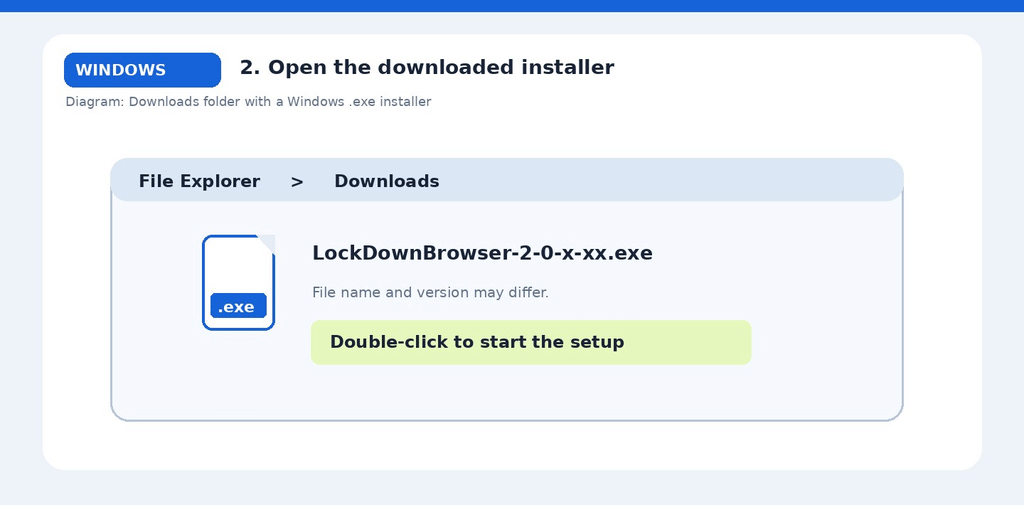
Illustrative guide image — actual installer screens and wording may differ.
Step 5: Run the installer with administrator permission
Double-click the downloaded .exe installer. Windows may display a permission prompt asking whether the program can make changes. Verify that you opened the installer downloaded from your college’s link before choosing Yes. If Windows asks for an administrator password you do not have, contact your device administrator; do not try to bypass the restriction.
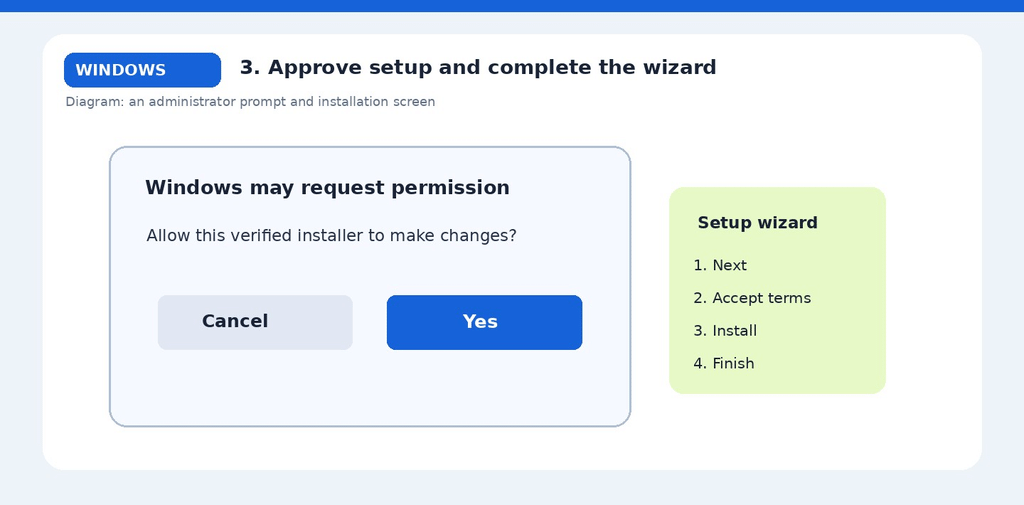
Illustrative guide image — actual installer screens and wording may differ.
Step 6: Follow the installation wizard
Read each screen, accept the license terms if you agree, and follow the default setup prompts. Choose Install, Next or Finish as the installer directs. Keep the computer powered on while setup completes. You may see the Respondus LockDown Browser shortcut on your desktop or in Start once it is installed.
Step 7: Close unrelated applications and prepare your workspace
Before your test, save any open work and close programs that are not required. LockDown Browser can ask you to quit applications that conflict with an exam session. Use your instructor’s rules to decide whether notes, scratch paper, calculators or other items are permitted. If Respondus Monitor is required, connect a working webcam and microphone and choose a well-lit location.
Step 8: Launch the quiz using your school’s required method
Launch instructions depend on the learning system. For many modern LMS integrations, sign into your course in Chrome or Edge, open the exam, and select a button such as Launch LockDown Browser or Launch Quiz. For some Canvas Classic or Blackboard Original exams, start the standalone LockDown Browser from the desktop or Start menu, log in, and open the quiz there. Follow your course instructions if they differ.
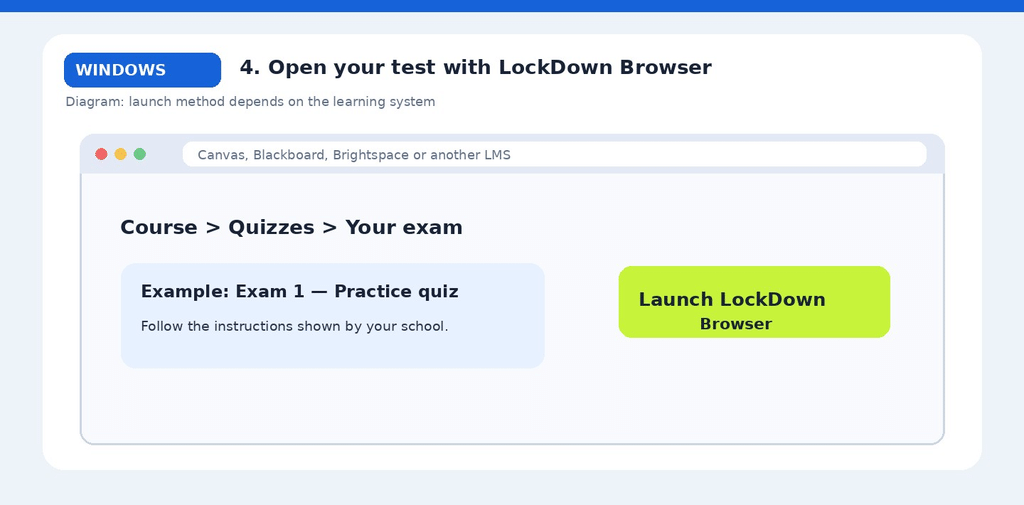
Illustrative guide image — actual installer screens and wording may differ.
Step 9: Complete the webcam startup checks if required
A LockDown Browser exam does not always require webcam recording. If your instructor has enabled Respondus Monitor, the startup sequence may ask you to confirm your camera and microphone, present identification, or scan your room. Follow only the requirements shown for your particular exam. If you do not see a webcam check, that alone does not prove the exam is unmonitored; read the course policy.
Step 10: Take a practice quiz and check for updates
Before exam day, open a low-stakes practice quiz if your instructor offers one. Verify that the browser starts, the quiz loads, and any camera checks finish. To check software updates, start LockDown Browser, look for the information (“i”) button and select Check for Update. Use your school’s link to reinstall if instructed by Respondus support.
Common installation problems and solutions
The download page shows another school. Return to your course or instructor and obtain your own institution’s installation link.
Windows says I need administrator permission. Sign in to an authorized administrator account or ask the device owner/IT staff for help.
I have Windows 11 S mode. S mode is not compatible. Ask your school about a suitable alternative device instead of changing security settings without approval.
The installer will not start. Confirm that you downloaded an .exe from your school, retry using another standard browser, and check whether security software or managed-device policies are preventing installation.
The exam says LockDown Browser is required even though I installed it. Return to the quiz instructions and try the correct launch method for your LMS; in some systems you need the dedicated Launch button.
The webcam is black or not detected. Update LockDown Browser, restart your computer, close other camera apps and try the Respondus pre-exam webcam check.
Bypass All Proctored Exams EXAMPIE BYPASS:
Frequently asked questions
Is Respondus LockDown Browser free to download?
Students at participating institutions generally obtain it through their school’s license and school-provided link. Ask your institution if you are unsure about access or fees.
Can I install LockDown Browser without administrator access?
Installation commonly needs administrator permission. If your computer is managed by your school or workplace, ask the administrator to install or approve it.
Can I use LockDown Browser in Windows S mode?
No. Respondus explicitly lists Windows 10/11 S mode and Windows SE as unsupported.
Do I need to download Respondus Monitor separately?
No separate Respondus Monitor student installer is generally needed. If a webcam-proctored exam requires Monitor, the relevant startup checks run through the installed LockDown Browser.
Can I install LockDown Browser on both my laptop and desktop?
Yes, provided each compatible device uses your institution’s correct installer. Test the device you will actually use for the exam.
What should I do if it still does not work?
Record the exact error message, run Help Center diagnostics if available, and contact your institution’s IT team or Respondus student support before your exam deadline.
Final installation checklist
- The installer came from my own institution’s link.
- My computer meets the current Respondus requirements.
- I successfully installed and launched the app.
- I used my learning system’s correct exam-launch process.
- I tried a practice quiz and any required camera check.
A successful installation is only the first step. The best confirmation is completing a school-provided practice quiz with the exact computer and internet connection you plan to use on exam day.
Official sources and further reading
- Respondus: How do I install LockDown Browser?
- Respondus: System requirements
- Respondus: The student experience
- Respondus: How to update LockDown Browser
- Respondus: Student Help
This independent student guide is for educational purposes and is not affiliated with Respondus.