
2026 STUDENT INSTALLATION GUIDE · MAC
How to Download and Install Respondus LockDown Browser on Mac (2026 Step-by-Step Guide)
Need Respondus LockDown Browser for a Mac-based college exam? Follow this illustrated walkthrough to find the correct installer, unpack the ZIP, run the PKG and check that your exam launches.
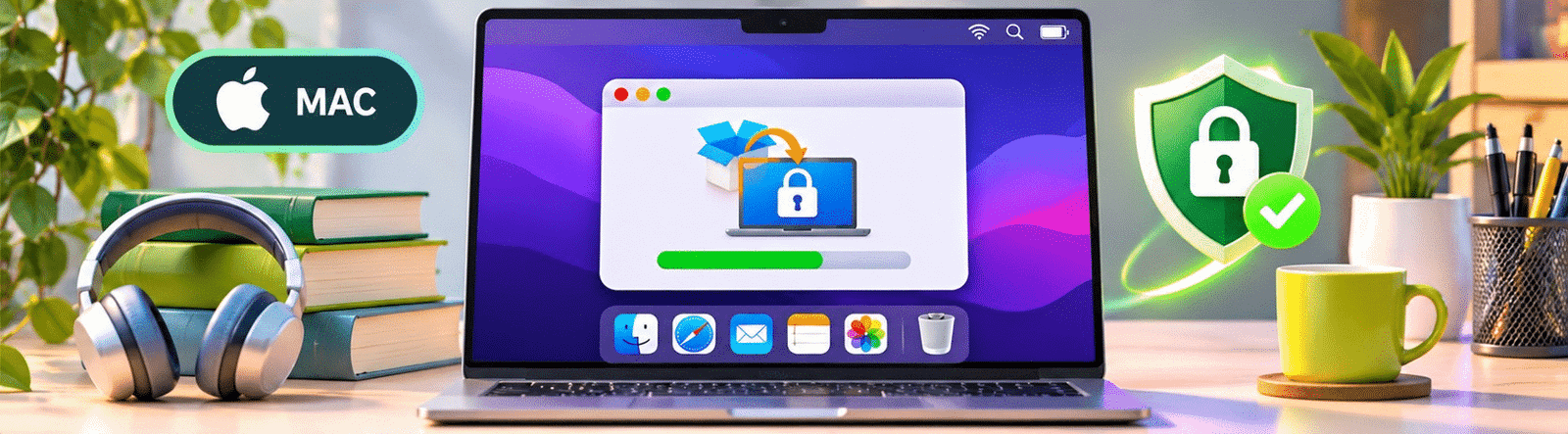
Concept illustration — not a screenshot of the actual Respondus installer.
| IMPORTANT: Download Respondus LockDown Browser through the official link supplied by your own university or college. An installer linked to another institution may not work. |
Before you install: requirements checklist
- A supported Mac running macOS 12 or later. To check, open Apple menu > About This Mac.
- A Mac account allowed to install applications, or assistance from your device administrator.
- A stable internet connection and your college’s official, institution-specific LockDown Browser download URL.
- At least 2 GB of RAM for basic operation; 4 GB of available RAM for exams that also use a webcam. Reserve at least 400 MB of free disk space.
- Your course username and password plus the instructor’s instructions for launching your particular exam.
Step-by-step installation instructions
Step 1: Check the Mac operating system and account permissions
Open the Apple menu in the top-left corner and select About This Mac. Confirm that the Mac runs macOS 12 or newer. If your device belongs to a school or company, ask whether you have permission to install apps. You may need an administrator password to complete the package installation.
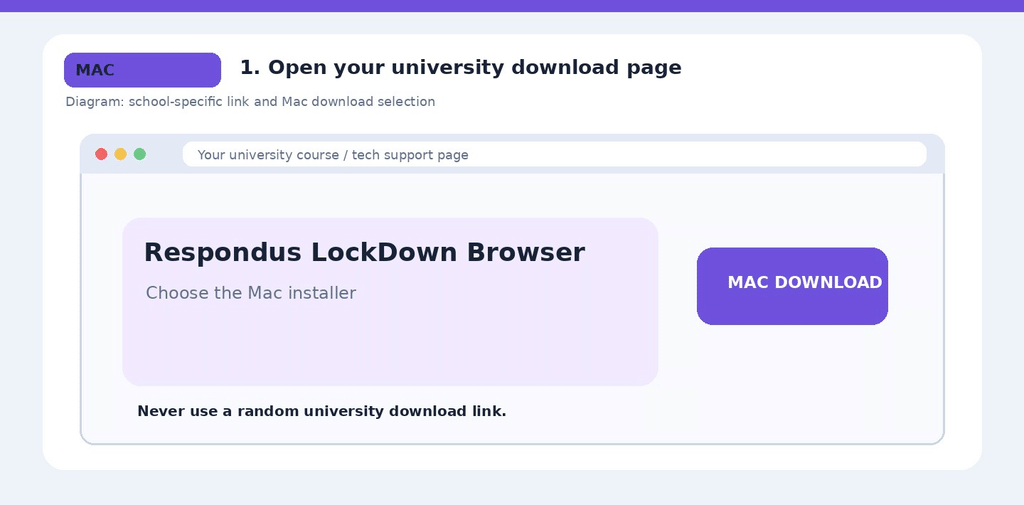
Step 2: Obtain the institution-specific Respondus link
Log in to your school’s online learning system in Safari, Chrome or another regular browser. Check the quiz information, course announcements or official IT support pages for the LockDown Browser download link. Because installers are tied to institutions, do not copy the URL from another school’s tutorial. If you are unsure, ask your instructor or campus help desk.
Illustrative guide image — actual installer screens and wording may differ.
Step 3: Download the Mac installer
Visit your school’s download page and confirm that the installer is intended for Mac. Select Download or Install Now. The download may arrive as a compressed ZIP archive with a name similar to InstallLDBPackage64c-2-0-x-xx.zip. The number in the name changes as new software versions are released.
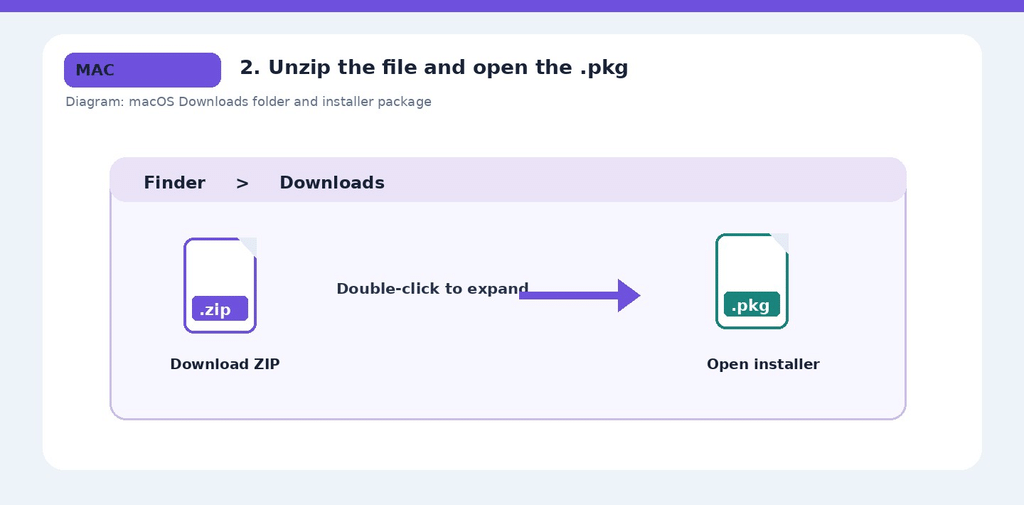
Step 4: Open Finder and extract the ZIP file
Open Finder and select Downloads in the sidebar. If Safari or another browser has already expanded the ZIP, you may see the installer package immediately. Otherwise, double-click the downloaded ZIP. macOS Archive Utility will extract the contents, normally into the same Downloads folder. Look for a package named similar to Install Respondus LockDown Browser [institution ID].pkg.
Illustrative guide image — actual installer screens and wording may differ.
Step 5: Double-click the .pkg installer
Open the package file to start the macOS Installer assistant. If macOS presents a normal security or installer verification prompt, carefully check that the package came from the approved school source before continuing. Do not disable Gatekeeper or follow unsolicited instructions to bypass macOS security protections.
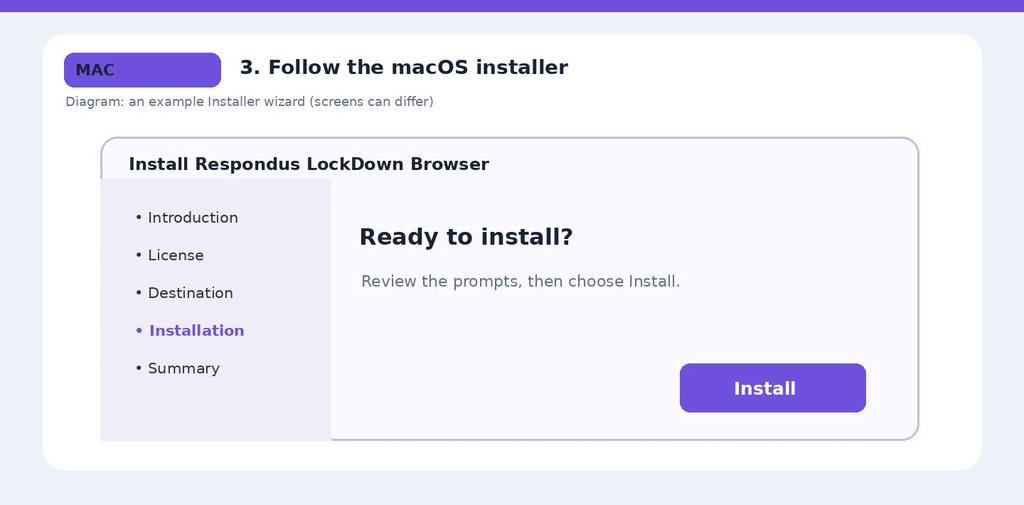
Step 6: Continue through the Installer screens
In the Installer window, review the introduction, select Continue, read the software license and accept it if you agree. Continue to the installation stage and select Install. Screens and button names may vary slightly with your macOS version and the software version.
Illustrative guide image — actual installer screens and wording may differ.
Step 7: Authorize the installation and wait for completion
When requested, enter your authorized Mac administrator password or approve with a supported authentication method. The installation may take a short while. Leave the installer open until it displays a success message, then choose Close. You can move the downloaded installer to the Trash after you have confirmed that the app works.
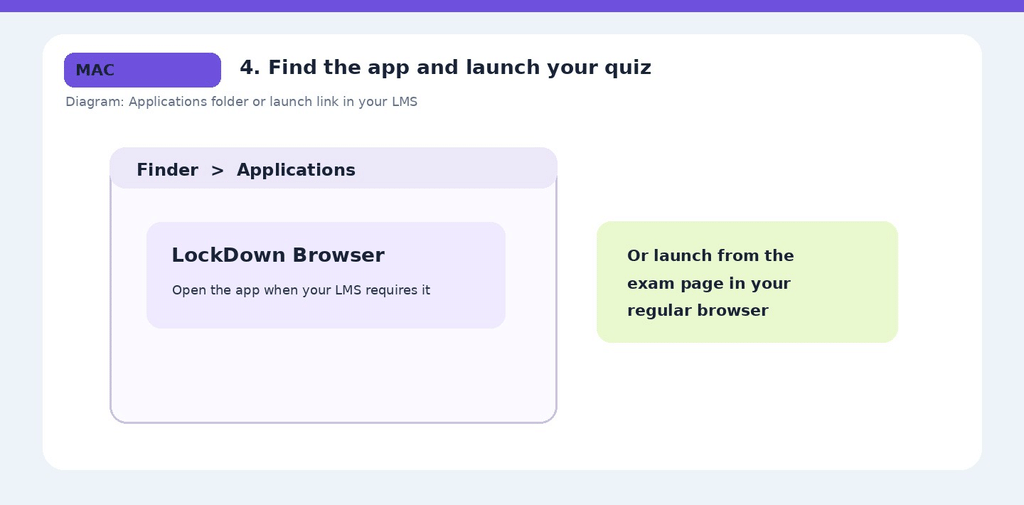
Step 8: Find LockDown Browser in Applications
Open Finder > Applications and locate LockDown Browser. If your course instructions require opening the standalone app, double-click it and follow the prompts. The app may show a globe/padlock-style icon. The appearance can change across versions, so rely on the application name rather than only the icon.
Illustrative guide image — actual installer screens and wording may differ.
Step 9: Open the exam using the correct LMS workflow
Some learning systems require you to first open Safari or Chrome, sign in, navigate to the quiz, and select Launch LockDown Browser or a similarly named button. Other integrations, including certain Canvas Classic and Blackboard Original quizzes, may use the app directly. Always follow the launch instructions displayed in your specific course.
Step 10: Complete any camera and microphone setup
If Respondus Monitor is enabled for your quiz, the exam’s startup sequence may request webcam and microphone access, camera verification, a photo ID check or room scan. Review each macOS permission prompt before approving it. The exact steps depend on the instructor’s requirements; a LockDown Browser-only exam may not use a webcam.
Step 11: Try a practice quiz and check for updates
Use any practice exam your instructor provides. Confirm that the application launches correctly and that microphone or camera checks work if required. Respondus documents an in-app update option, accessed from an information/globe/toolbar control depending on the Mac version. You can also reinstall using your institution’s latest package if support instructs you to do so.
Common installation problems and solutions
I downloaded a ZIP file instead of an app. That is expected for many Mac installations. Double-click the ZIP, then open the extracted .pkg installer.
I cannot find the .pkg file. Use Finder > Downloads and sort by Date Added; check whether your browser automatically extracted the ZIP.
The installer requests a password. macOS may require a local administrator password. Contact the authorized administrator if you do not have it.
macOS prevents the package from opening. Verify the original school source first. Use your institution’s support instructions rather than disabling security protections or bypassing warnings.
I cannot find LockDown Browser after installing. Open Finder > Applications or use Spotlight to search by the full application name.
The browser keeps updating or the webcam does not work. Check for updates, restart your Mac, close other apps using the camera and contact IT support if the issue remains.
Bypass All Proctored Exams EXAMPIE BYPASS:
Frequently asked questions
Does Respondus LockDown Browser work on macOS 11?
The current published system requirements list macOS 12 and newer. Update to a supported version if your Mac supports it, or ask your institution about another approved device.
Why did I receive both ZIP and PKG files?
The ZIP is the downloaded archive; the PKG inside it is the actual macOS installer. You normally need to open the PKG to install the app.
Can I install LockDown Browser from the Mac App Store?
For Mac computers, use the unique installer supplied by your institution. Do not confuse the Mac computer installation with the separate iPad app distribution.
Is the Mac installation procedure the same on Intel and Apple Silicon?
The overall school-link, ZIP/PKG and installer workflow is similar on supported Macs. Always use the current installer designated for your institution and device.
Does using LockDown Browser automatically record me?
Not necessarily. Webcam recording depends on whether the test is configured with Respondus Monitor or another proctoring requirement.
How do I update Respondus LockDown Browser on Mac?
Open the app and use the available information, globe or About/update control to check for an update, or follow official instructions to reinstall from your school’s link.
Final installation checklist
- The installer came from my own institution’s link.
- My computer meets the current Respondus requirements.
- I successfully installed and launched the app.
- I used my learning system’s correct exam-launch process.
- I tried a practice quiz and any required camera check.
Once the installation succeeds, open a school-provided practice quiz and follow its exact launch instructions. Doing this before the actual exam is the easiest way to catch permission, download or camera problems early.
Official sources and further reading
- Respondus: How do I install LockDown Browser?
- Respondus: System requirements
- Respondus: The student experience
- Respondus: How to update LockDown Browser
- Respondus: Student Help
This independent student guide is for educational purposes and is not affiliated with Respondus.
